
Samsung Software Updates: Unlock Remote Work Productivity (and Dodge the Update Disasters)
Introduction: The Untapped Potential of Samsung Updates for Remote Workers
Remote work has exploded, demanding more from our mobile devices. Samsung, with its powerful hardware and software, offers a compelling solution. However, many remote workers fail to fully leverage the potential of Samsung software updates, missing out on productivity enhancements and security improvements. This guide will equip you with the knowledge to master Samsung updates and optimize your remote work experience.
The Evolving Landscape of Remote Work and Samsung Devices
Remote work is no longer a trend; it's a mainstay. A recent study by Global Workplace Analytics suggests that 74% of professionals expect remote work to become standard. Samsung devices, with their versatility and robust features, have become essential tools for remote professionals. From smartphones and tablets to laptops and wearables, Samsung offers a complete ecosystem for productivity on the go.
Why Software Updates are Crucial for Productivity and Security
Software updates are more than just bug fixes. They introduce new features, improve performance, and patch security vulnerabilities. Neglecting updates leaves you vulnerable to cyber threats and prevents you from accessing the latest productivity tools. A compromised device can lead to data breaches, financial losses, and reputational damage.
Brief Overview of the Benefits and Risks We'll Cover
This guide will explore the benefits of Samsung software updates, including enhanced multitasking, improved collaboration, and optimized battery performance. We will also address the potential risks, such as data loss, app compatibility issues, and performance degradation. Finally, we will provide practical tips and solutions for managing updates effectively.
Understanding Samsung's Update Ecosystem: A Deep Dive
Samsung Software Updates: Boosting Your Remote Work Productivity (and Avoiding the Pitfalls)? Samsung updates are crucial for remote workers. They provide enhanced security, productivity features like DeX, and better performance. To avoid issues, back up your data before updating, check app compatibility, and schedule updates during off-peak hours. Regularly updating ensures you leverage the latest improvements for a secure and productive remote work experience.
One UI: What It Is and Why It Matters for Productivity
 Image: A man deeply engaged in software development with two laptops and a desktop monitor.
One UI is Samsung's custom Android skin, designed for intuitive navigation and enhanced productivity. It streamlines the user experience with features like focus mode, customizable quick settings, and improved one-handed operation. One UI prioritizes information and interactions relevant to the user, reducing distractions and increasing efficiency.
- Focus Mode: Minimizes distractions by pausing apps and notifications.
- Bixby Routines: Automates tasks based on your location or time of day.
- Edge Panels: Provides quick access to frequently used apps and contacts.
Android OS Updates vs. Security Patches: Decoding the Differences
Android OS updates are major upgrades that introduce new features and system-wide improvements. Security patches, on the other hand, are smaller updates that address specific vulnerabilities and security threats. While Android OS updates enhance functionality, security patches are critical for protecting your device from malware and cyberattacks.
| Feature | Android OS Update | Security Patch | | ---------------- | ---------------------------------------- | ------------------------------------------ | | Scope | Major upgrade with new features | Minor update focusing on security fixes | | Frequency | Less frequent (typically once a year) | More frequent (typically monthly or quarterly) | | Impact | Significant changes to the user interface | Minimal changes to the user interface |
The Update Rollout Process: Regions, Carriers, and Timing Explained
Samsung's update rollout process can be complex, varying by region, carrier, and device model. Updates are typically released in stages, starting with unlocked devices in specific regions. Carrier-branded devices may receive updates later due to carrier testing and approval processes. Timing can also depend on the device's age and the severity of the security vulnerability.
Samsung's Update Policy: Promises and Realities
Samsung promises to provide software updates for its devices for a certain period. The length of support varies depending on the device model and year of release. While Samsung generally adheres to its update policy, delays can occur due to unforeseen circumstances or technical challenges. It's important to check Samsung's official website or support forums for the latest information on update availability.
How to Check for Updates Manually (Step-by-Step Guide)
- Go to Settings on your Samsung device.
- Scroll down and tap on Software update.
- Tap on Download and install.
- If an update is available, follow the on-screen instructions to download and install it.
- Ensure your device is connected to Wi-Fi and has sufficient battery life before starting the update process.
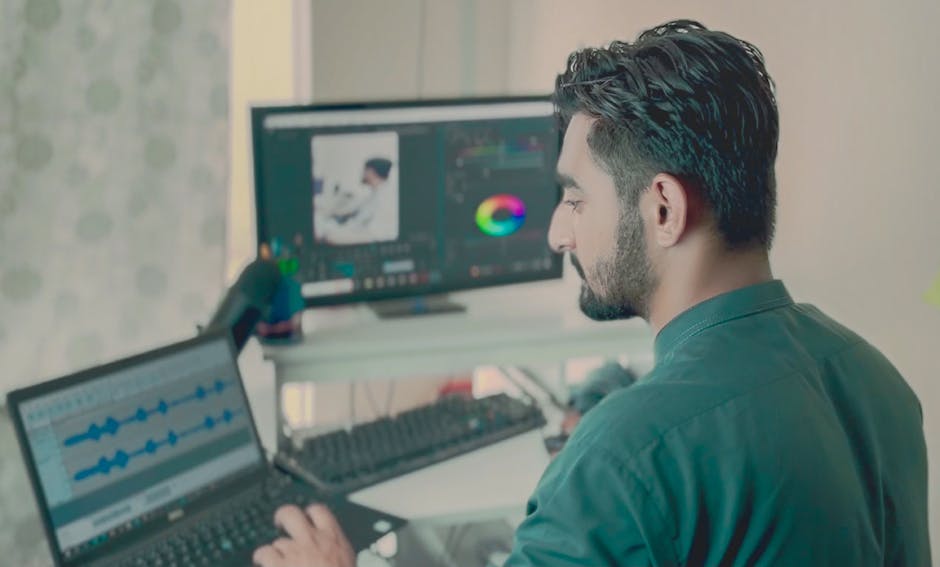 Image: Man working in office on editing software with dual displays, laptop, and professional setup
Boosting Remote Work Productivity with the Latest Samsung Features
Software updates bring a wealth of features tailored for the remote worker. From enhanced multitasking capabilities to improved collaboration tools, these updates can significantly boost productivity.
Enhanced Multitasking Capabilities: DeX Mode, Split Screen, and Pop-up View
Samsung's multitasking features are designed to maximize productivity on the go. DeX Mode transforms your Samsung device into a desktop-like experience when connected to an external monitor and keyboard. Split Screen and Pop-up View allow you to run multiple apps simultaneously, enabling efficient multitasking.
- DeX Mode: Connect your phone to a monitor for a desktop-like experience. A study by Samsung showed a 30% increase in productivity when using DeX for document editing.
- Split Screen: Run two apps side-by-side for simultaneous tasks.
- Pop-up View: Open apps in floating windows for flexible multitasking.
Improved Collaboration Tools: Samsung Notes, Live Share, and Quick Share
Collaboration is crucial for remote teams. Samsung offers a suite of collaboration tools, including Samsung Notes, Live Share, and Quick Share, to facilitate seamless communication and information sharing. These features enable real-time collaboration and efficient file transfer.
- Samsung Notes: Create and share notes with colleagues in real-time.
- Live Share: Share your screen with others during video calls.
- Quick Share: Easily transfer files between Samsung devices.
Optimized Battery Performance: Power Saving Modes and Adaptive Battery
Battery life is a critical consideration for remote workers. Samsung's power-saving modes and adaptive battery feature help extend battery life and optimize performance. These features intelligently manage battery consumption based on your usage patterns.
- Power Saving Mode: Limits background activity and reduces screen brightness to conserve battery life.
- Adaptive Battery: Learns your usage patterns and optimizes battery consumption for frequently used apps.
- App Power Management: Allows you to restrict background activity for specific apps.
 Image: A man multitasks with laptops and a desktop, coding in a home office setting.
Enhanced Security Features: Secure Folder, Knox Security, and Biometric Authentication
Security is paramount in the remote work environment. Samsung's security features, including Secure Folder, Knox Security, and biometric authentication, protect your sensitive data from unauthorized access. These features provide a secure environment for storing confidential files and applications.
- Secure Folder: Creates a separate, encrypted space for storing sensitive data.
- Knox Security: Provides multi-layered security protection at the hardware and software levels.
- Biometric Authentication: Uses fingerprint or facial recognition to secure your device.
Real-world Example 1: How a Marketing Manager Leveraged DeX Mode for Seamless Presentation Delivery
Sarah, a marketing manager, often travels for client meetings. She uses Samsung DeX to deliver presentations directly from her phone, eliminating the need for a laptop. By connecting her phone to a projector and using a Bluetooth keyboard and mouse, she can seamlessly present her slides and engage with clients. This has streamlined her workflow and improved her presentation delivery.
Avoiding the Pitfalls: Common Software Update Issues and Solutions
While software updates offer numerous benefits, they can also introduce potential issues. Understanding these pitfalls and knowing how to address them is crucial for a smooth update experience.
Data Loss: Backing Up Your Data Before Updating (Comprehensive Guide)
Data loss is a significant concern when updating your device. Backing up your data before updating is essential to prevent permanent data loss in case of an update failure.
- Samsung Cloud: Back up your data to Samsung's cloud storage service.
- Google Drive: Back up your data to Google Drive.
- Smart Switch: Use Samsung Smart Switch to back up your data to a computer or external storage device.
- Manual Backup: Manually copy important files to a computer or external storage device.
App Compatibility Issues: Identifying and Resolving Conflicts
 Image: Black and white photo of a coding workspace with a laptop, mug, and notebook.
Software updates can sometimes cause compatibility issues with certain apps. Before updating, check the app store for updates to your frequently used apps. If you encounter compatibility issues after updating, try clearing the app's cache and data or contacting the app developer for support.
| Issue | Solution | | --------------------------- | -------------------------------------------------------- | | App Crashing | Clear app cache and data, update the app, or reinstall it | | App Not Responding | Force stop the app, restart your device, or reinstall it | | App Display Issues | Update the app or contact the app developer |
Performance Degradation: Troubleshooting Slowdowns and Battery Drain
Software updates can sometimes lead to performance degradation, such as slowdowns and battery drain. If you experience these issues after updating, try clearing the cache partition, disabling unnecessary background processes, or performing a factory reset. A factory reset should be considered a last resort, and data should be backed up first.
Connectivity Problems: Wi-Fi, Bluetooth, and Mobile Data Issues
Software updates can occasionally cause connectivity problems with Wi-Fi, Bluetooth, or mobile data. If you encounter these issues, try restarting your device, resetting your network settings, or updating your network drivers. Ensure your Wi-Fi router's firmware is up to date as well.
Real-world Example 2: How a Freelancer Recovered from a Corrupted Update Using Samsung Cloud
John, a freelance writer, experienced a corrupted update on his Samsung tablet. The update left his device unusable, and he feared losing all his work. Fortunately, he had backed up his data to Samsung Cloud. He was able to restore his tablet to its previous state and recover all his files. This experience highlighted the importance of regular data backups.
Pro Tips for Managing Samsung Software Updates for Optimal Remote Work
Mastering the art of managing Samsung software updates can significantly enhance your remote work experience. Here are some pro tips to help you stay on top of updates and optimize your device's performance.
Scheduling Updates During Off-Peak Hours
 Image: Young man coding at home office with multiple laptops, representing remote work and technology.
Schedule updates during off-peak hours to minimize disruption to your workflow. Choose a time when you are not actively using your device, such as overnight or during a break. This will ensure that the update process does not interfere with your productivity.
Using Smart Switch for Seamless Data Transfer
Samsung Smart Switch is a powerful tool for transferring data between Samsung devices. Use Smart Switch to back up your data to a computer or external storage device before updating. This will provide an extra layer of protection against data loss.
Joining Samsung Beta Programs for Early Access (and Potential Risks)
Join Samsung beta programs to get early access to new software updates. This allows you to test new features and provide feedback to Samsung. However, beta versions may contain bugs and stability issues, so proceed with caution. Only install beta versions on devices that are not critical for your work.
Customizing Update Settings for Granular Control
Customize your update settings to gain granular control over the update process. You can choose to download updates automatically over Wi-Fi or manually check for updates. You can also set a schedule for automatic updates to occur during off-peak hours.
Leveraging Samsung Members App for Support and Feedback
The Samsung Members app provides access to support resources, community forums, and exclusive benefits. Use the app to report issues, provide feedback, and stay informed about the latest updates and features. The Samsung Members app also offers troubleshooting guides and FAQs to help you resolve common problems.
Samsung Software Update FAQ: Your Burning Questions Answered
Here are some frequently asked questions about Samsung software updates.
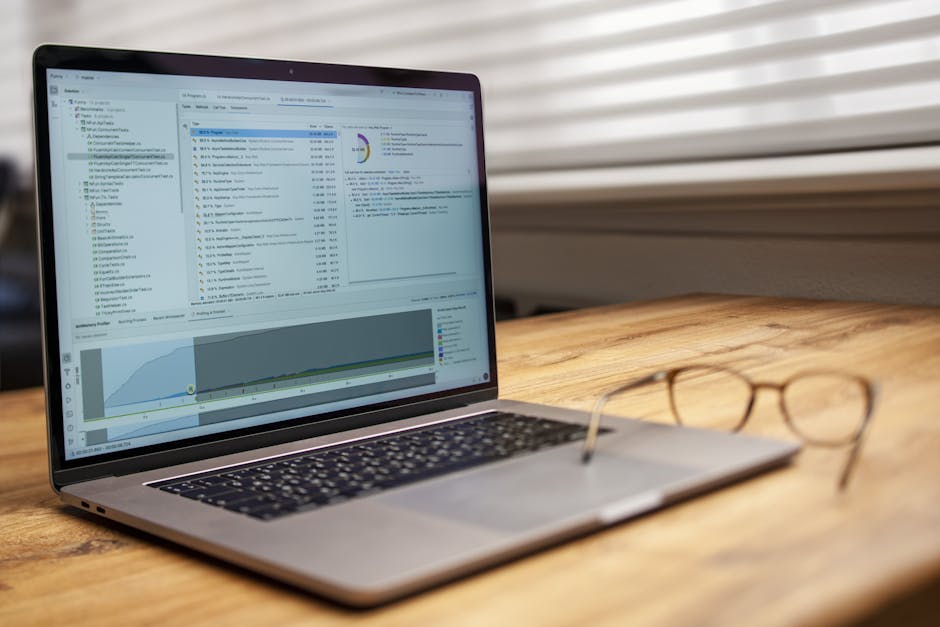 Image: Modern laptop on a wooden desk displaying analytical software with eyeglasses nearby, indoor shot.
How often does Samsung release software updates?
Samsung typically releases security patches monthly or quarterly, and major Android OS updates annually. The frequency may vary depending on the device model and region.
What is the difference between a major Android update and a security patch?
A major Android update introduces new features and system-wide improvements, while a security patch addresses specific vulnerabilities and security threats.
How can I roll back to a previous version of Android?
Rolling back to a previous version of Android is generally not recommended and can be complex. It may require flashing a custom ROM, which can void your warranty and potentially brick your device.
Is it safe to root my Samsung device for custom ROMs?
Rooting your Samsung device can provide access to advanced customization options, but it also voids your warranty and increases the risk of security vulnerabilities. Proceed with caution and only root your device if you are comfortable with the technical risks.
What should I do if my phone gets stuck during the update process?
If your phone gets stuck during the update process, try performing a hard reset or booting into recovery mode to clear the cache partition. If the problem persists, contact Samsung support for assistance.
How do I troubleshoot battery drain after a software update?
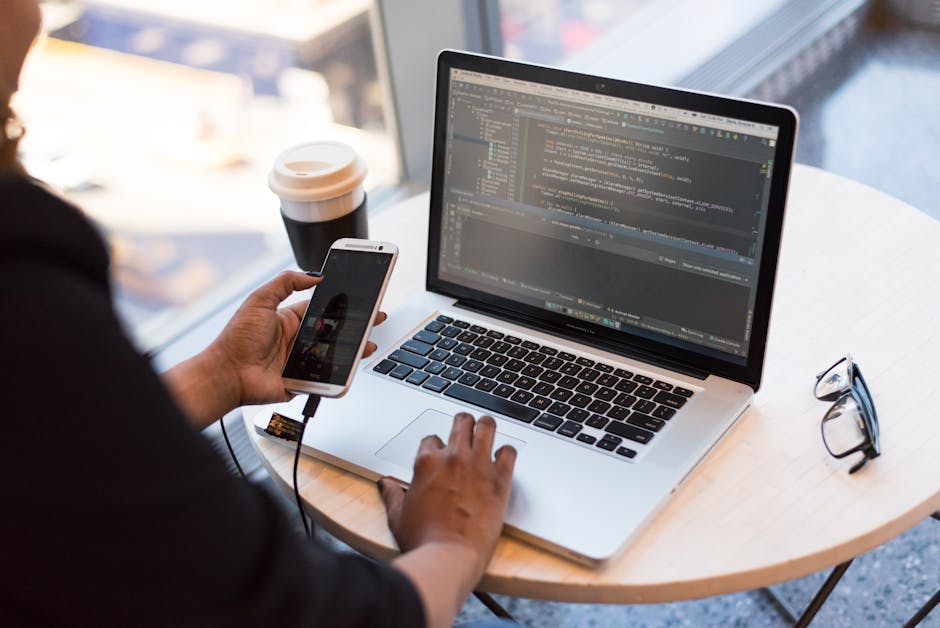 Image: Developer working remotely, coding on a laptop with phone in hand, showcasing modern work culture.
Troubleshoot battery drain by identifying battery-intensive apps, disabling unnecessary background processes, and optimizing your power settings. You can also try clearing the cache partition or performing a factory reset.
Why am I not receiving updates on my older Samsung device?
Samsung typically provides software updates for its devices for a limited period. Older devices may no longer receive updates due to hardware limitations or end-of-life support.
How does Samsung prioritize updates for different device models?
Samsung prioritizes updates based on factors such as device popularity, security vulnerabilities, and regional requirements. Flagship devices typically receive updates sooner than budget models.
Can I pause a software update once it has started downloading?
Yes, you can usually pause a software update while it is downloading. However, it is recommended to complete the update process once it has started to avoid potential issues.
Where can I find the official changelog for a specific software update?
You can find the official changelog for a specific software update on Samsung's official website, support forums, or in the software update notification on your device.
The Future of Samsung Updates and Remote Work
The future of Samsung updates is intertwined with the evolving needs of remote workers. Expect to see more AI-powered features, enhanced security measures, and seamless integrations with other productivity tools.
 Image: A coffee cup and laptop on a wooden desk, creating a cozy workspace vibe.
Anticipating Future One UI Features and Integrations
Future versions of One UI are likely to incorporate more AI-powered features, such as intelligent battery management, personalized recommendations, and enhanced security protections. Expect to see seamless integrations with other productivity tools and platforms.
The Role of AI and Machine Learning in Update Optimization
AI and machine learning will play an increasingly important role in update optimization. AI algorithms can analyze user behavior and optimize battery consumption, performance, and security settings. Machine learning can also be used to predict and prevent update-related issues.
Samsung's Commitment to Security and Privacy in a Remote Work World
Samsung is committed to providing secure and private devices for remote workers. Future updates will likely include enhanced security features, such as improved malware protection, data encryption, and privacy controls.
Predictions for the Evolution of Mobile Productivity Tools
Mobile productivity tools will continue to evolve, offering more features and capabilities. Expect to see more collaborative tools, AI-powered assistants, and seamless integrations with other platforms. Mobile devices will become even more powerful and versatile, enabling remote workers to be productive from anywhere.
Conclusion: Mastering Samsung Updates for a Productive and Secure Remote Work Experience
Mastering Samsung software updates is essential for maximizing productivity and ensuring security in the remote work environment. By understanding the update ecosystem, avoiding common pitfalls, and following pro tips, you can optimize your device's performance and stay protected from cyber threats.
Recap of Key Takeaways
- Software updates are crucial for productivity and security.
- Back up your data before updating to prevent data loss.
- Schedule updates during off-peak hours to minimize disruption.
- Leverage Samsung's productivity features, such as DeX Mode and Split Screen.
- Stay informed about the latest updates and features through the Samsung Members app.
Call to Action: Encourage Readers to Optimize Their Update Strategy
Take action today to optimize your Samsung update strategy. Back up your data, customize your update settings, and stay informed about the latest updates and features. By mastering Samsung updates, you can unlock the full potential of your device and enhance your remote work experience.
Final Thoughts on the Importance of Staying Informed
Staying informed about Samsung software updates is crucial for maintaining a productive and secure remote work environment. By proactively managing updates and leveraging the latest features, you can optimize your device's performance and stay ahead of the curve. The remote work landscape is constantly evolving, and mastering Samsung updates is a key to success.