
Is Your Remote Work Setup Ready for a Tech Apocalypse? A Deep Dive
Imagine this: you're in the middle of a critical presentation, deadlines loom, and suddenly, the power flickers and dies. Or worse, a cyberattack cripples your network. Remote work offers flexibility, but it also introduces vulnerabilities. This guide provides actionable strategies to ensure your remote work setup is resilient against any "tech apocalypse."
Is your Remote Work Setup Ready for a Tech Apocalypse? A resilient remote work setup requires proactive planning and robust solutions to mitigate the impact of power outages, internet disruptions, hardware failures, cyberattacks, and communication breakdowns. This includes redundant power and internet sources, secure data backup, strong cybersecurity measures, and pre-defined emergency communication protocols.
Introduction: The Looming Threat to Remote Productivity
The allure of remote work – flexibility, autonomy, and increased productivity – is undeniable. However, this newfound freedom hinges on reliable technology. When that technology fails, productivity grinds to a halt, and the consequences can be devastating.
Why Preparing for Tech Disruptions is No Longer Optional
Ignoring the potential for tech-related disruptions is a gamble with significant stakes. A recent study by the Global Remote Work Association found that unplanned downtime costs remote-first companies an average of $20,000 per incident. Proactive preparation is not just good practice; it's a business imperative.
Defining a 'Tech Apocalypse' in the Context of Remote Work: Scenarios and Severity
A "Tech Apocalypse" isn't necessarily a global catastrophe. It's any event that severely disrupts your ability to work remotely. This could range from a localized power outage to a widespread cyberattack. Severity can range from minor inconvenience to complete operational paralysis.
Examples of Tech Apocalypse Scenarios:
- Power Outage: Localized grid failure, natural disasters.
- Internet Outage: ISP failure, cable cuts, cyberattacks on internet infrastructure.
- Hardware Failure: Laptop malfunction, router failure, server crash.
- Software Glitch: Critical application bugs, operating system errors.
- Cyberattack: Ransomware, phishing attacks, data breaches.
- Communication Breakdown: Platform outages, inability to reach team members.
The Interconnectedness of Remote Tools and the Single Point of Failure Problem
Remote work relies on a complex web of interconnected tools: internet, power, hardware, software, and communication platforms. A failure in any one of these areas can trigger a cascade of problems, highlighting the "single point of failure" vulnerability. Addressing this vulnerability requires redundancy and robust backup systems.
Setting the Stage: What This Guide Will Cover
 Image: Artistic display of Scrabble tiles spelling the word 'For' on a dark background.
This comprehensive guide will equip you with the knowledge and strategies to fortify your remote work setup against various tech disruptions. We'll cover power solutions, internet redundancy, hardware protection, cybersecurity measures, communication protocols, and frequently asked questions.
Section 1: Power Outages: The Silent Killer of Remote Work
Power outages are among the most common and disruptive threats to remote work productivity. They can strike unexpectedly, leaving you unable to access your devices, internet, and critical work tools.
Identifying Your Critical Power Needs: Devices and Duration
Begin by identifying the devices essential for your remote work. Calculate the power consumption (wattage) of each device (laptop, monitor, router, etc.). Estimate the minimum duration you need to power these devices during an outage.
Example:
- Laptop: 60W
- Monitor: 30W
- Router: 15W
- Total: 105W
If you need to work for 4 hours, you'll need a power source capable of delivering at least 420Wh (Watt-hours).
Uninterruptible Power Supplies (UPS): Choosing the Right Size and Type
An Uninterruptible Power Supply (UPS) provides immediate backup power during an outage. Choose a UPS with sufficient wattage capacity to power your critical devices and a battery runtime that meets your needs. Consider the type of UPS:
- Standby UPS: Basic protection, switches to battery power upon outage (suitable for short outages).
- Line-Interactive UPS: Offers voltage regulation and noise filtering in addition to battery backup.
- Online UPS: Provides continuous power conditioning and seamless switching to battery (best for sensitive equipment).
UPS Selection Table:
| Device(s) | Power Consumption (Watts) | Recommended UPS VA Rating | Estimated Runtime (Minutes) | | ------------------ | ------------------------- | -------------------------- | --------------------------- | | Laptop, Router | 75W | 500 VA | 30-45 | | Laptop, Monitor, Router | 105W | 750 VA | 20-30 | | Multiple Devices, Server | 300W | 1500 VA | 10-15 |
 Image: A workspace featuring a laptop, tablet, camera, and lens, ideal for creative work and photography.
Backup Generators: A More Robust Solution for Extended Outages
For longer outages, a backup generator offers a more sustainable power source. Generators run on gasoline, propane, or natural gas, providing power for hours or even days. Consider the noise level, fuel consumption, and maintenance requirements when choosing a generator.
Solar Power: Sustainable Backup for the Long Term
Solar power provides a clean and renewable backup power solution. A solar panel system with battery storage can power your remote work setup indefinitely during sunny days. While the initial investment is higher, solar power offers long-term cost savings and environmental benefits.
Power Management Strategies: Conserving Energy and Extending Battery Life
Optimize your power usage to extend battery life during outages. Dim your screen, close unnecessary applications, and enable power-saving mode. Consider using energy-efficient devices and appliances.
Real-world example: How a solar panel system saved a company from a multi-day outage.
"During a severe ice storm in Texas in February 2021, a remote-first marketing agency, 'Bright Ideas Co.', was able to maintain full operations thanks to their office's solar panel system with battery storage. While the rest of the city experienced multi-day blackouts, the agency's employees connected to the office's network via VPN and continued working seamlessly, preventing an estimated $50,000 in lost revenue."
Section 2: Internet Outages: Staying Connected When the World Goes Dark
An internet outage can be just as debilitating as a power outage. Maintaining connectivity is crucial for accessing cloud-based tools, communicating with colleagues, and meeting deadlines.
Identifying Your Internet Dependency: What Services Are Crucial?
Determine which online services are essential for your work. This includes email, cloud storage, video conferencing, project management tools, and any industry-specific applications. Understanding your internet dependency helps you prioritize backup solutions.
Redundant Internet Connections: Wired and Wireless Options (Cellular, Satellite)
 Image: A man sitting at a desk working on a laptop and desktop, embodying modern remote work setup.
Implement redundant internet connections to ensure continuous connectivity. Consider a combination of wired and wireless options:
- Secondary Wired Connection: A different ISP or a backup DSL line.
- Cellular Hotspot: Use your smartphone or a dedicated mobile hotspot as a backup internet source.
- Satellite Internet: Services like Starlink provide internet access in remote areas with limited terrestrial infrastructure.
Internet Redundancy Comparison:
| Option | Pros | Cons | | ------------------- | --------------------------------------------------------------------- | ----------------------------------------------------------------- | | Secondary Wired ISP | Reliable, high bandwidth | Requires separate subscription, geographical limitations | | Cellular Hotspot | Portable, readily available | Limited data allowance, potential speed throttling | | Satellite Internet | Wide coverage, access in remote areas | Higher latency, weather-dependent performance, higher cost |
Offline Productivity Tools: Software That Works Without an Internet Connection
Utilize offline productivity tools that allow you to work even without an internet connection. This includes:
- Offline Word Processors: Microsoft Word, Google Docs (offline mode).
- Offline Spreadsheets: Microsoft Excel, Google Sheets (offline mode).
- Offline Project Management Tools: Some project management platforms offer limited offline functionality.
- Note-Taking Apps: Evernote, OneNote can be used offline, syncing when connectivity is restored.
Local Network Solutions: Creating a Private Network for File Sharing and Collaboration
Establish a local network within your remote workspace to facilitate file sharing and collaboration without relying on the internet. This can be achieved using a Network Attached Storage (NAS) device or a local server.
Mesh Networks: Extending Your Network Range and Resilience
A mesh network uses multiple wireless nodes to create a robust and extended Wi-Fi network. If one node fails, the others automatically re-route traffic, ensuring continuous connectivity. This is particularly useful for larger homes or offices.
Real-world example: A case study of using Starlink satellite internet during a fiber optic cable cut.
"During a major fiber optic cable cut that affected several counties in rural Montana, a remote software development team, 'Code Wranglers Inc.', relied on their Starlink satellite internet connection to maintain operations. While other businesses were completely offline, the team was able to continue coding, attending meetings, and deploying updates, minimizing downtime and preventing significant financial losses."
 Image: Hands on a laptop with an inspirational quote displayed on the screen, shot from above.
Section 3: Hardware Failures: Protecting Your Essential Equipment
Hardware failures are inevitable. Having a plan to address these failures is crucial for minimizing disruption and data loss.
Identifying Critical Hardware: Laptops, Routers, Servers
Identify the hardware components that are essential for your remote work. This typically includes your laptop, router, external hard drives, and any servers you may use.
Data Backup and Recovery Strategies: Onsite, Offsite, and Cloud Solutions
Implement a comprehensive data backup and recovery strategy. This should include a combination of:
- Onsite Backup: Regularly back up your data to an external hard drive or a NAS device.
- Offsite Backup: Store a copy of your data in a different physical location, such as a safe deposit box or a family member's home.
- Cloud Backup: Utilize cloud-based backup services like Backblaze, Carbonite, or cloud storage platforms like Google Drive, OneDrive, or Dropbox.
Data Backup Options Comparison:
| Option | Pros | Cons | | -------------- | ----------------------------------------------------------------- | --------------------------------------------------------------------------- | | Onsite Backup | Fast recovery, control over data | Vulnerable to local disasters (fire, flood, theft) | | Offsite Backup | Protection against local disasters | Slower recovery, requires manual effort | | Cloud Backup | Automated, accessible from anywhere, protection against all disasters | Reliance on internet connectivity, potential security and privacy concerns |
Hardware Redundancy: Having Backup Devices Ready to Go
Maintain hardware redundancy by having backup devices readily available. This could include a spare laptop, router, or monitor. Consider purchasing refurbished or used equipment to reduce costs.
Disaster Recovery Plans: Steps to Take When Hardware Fails
Develop a detailed disaster recovery plan that outlines the steps to take when hardware fails. This should include:
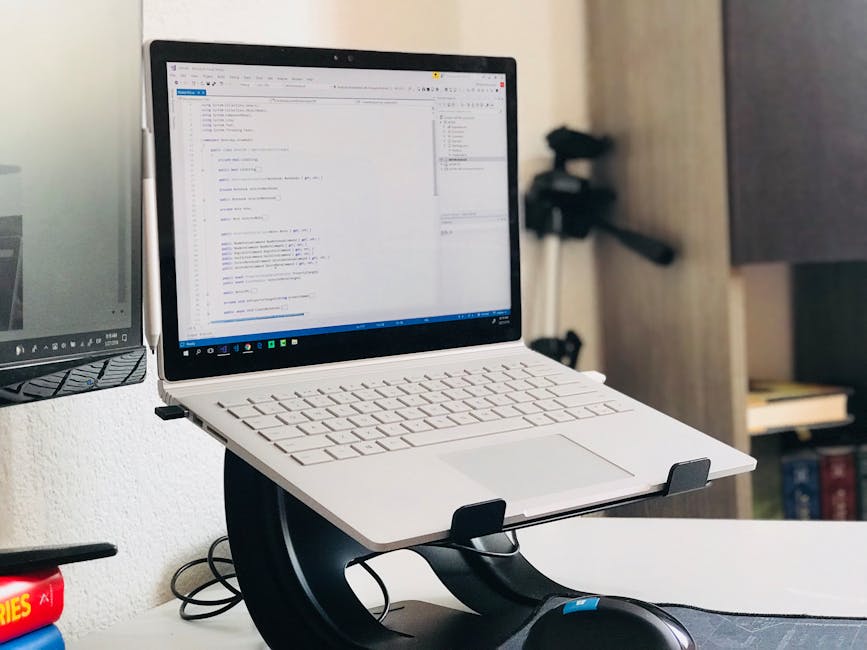 Image: A home office setup featuring a laptop on a stand and a monitor, ideal for remote work.
- Identifying the failed component.
- Activating the backup device.
- Restoring data from backup.
- Contacting technical support.
Hardware Maintenance: Extending the Life of Your Equipment
Regular hardware maintenance can help extend the life of your equipment and prevent failures. This includes:
- Cleaning your devices regularly.
- Keeping your software up to date.
- Monitoring your hardware's performance.
- Replacing worn-out components.
Choosing Durable and Reliable Hardware: Brands and Models to Consider
Invest in durable and reliable hardware from reputable brands. Research product reviews and consider extended warranties. For laptops, consider brands like Dell, Lenovo, and Apple. For routers, consider brands like Netgear, Asus, and TP-Link.
Real-world example: How a RAID array saved a small business from complete data loss after a hard drive failure.
"A small architecture firm, 'Arch Solutions Ltd.', experienced a hard drive failure in their primary workstation. However, because they had implemented a RAID 1 (mirroring) array, their data was automatically replicated to a second hard drive. The firm was able to continue working with minimal downtime, avoiding significant project delays and potential client dissatisfaction. The cost of the RAID array was a small price to pay compared to the potential cost of data recovery or complete data loss."
Section 4: Software Glitches and Cyberattacks: Securing Your Digital Workspace
Software glitches and cyberattacks pose a significant threat to remote work security and productivity. Implementing robust security measures is essential for protecting your data and systems.
Identifying Vulnerabilities: Weak Passwords, Outdated Software, Phishing
Identify potential vulnerabilities in your remote work setup. This includes:
- Weak Passwords: Using easily guessable passwords or reusing passwords across multiple accounts.
- Outdated Software: Running outdated operating systems, applications, and antivirus software.
- Phishing: Falling victim to phishing emails or websites that attempt to steal your credentials.
- Unsecured Networks: Connecting to public Wi-Fi networks without a VPN.
 Image: Ergonomic adjustable desk setup for productive and comfortable remote work.
Robust Security Measures: Firewalls, Antivirus Software, VPNs
Implement robust security measures to protect your digital workspace:
- Firewall: A firewall acts as a barrier between your network and the outside world, blocking unauthorized access.
- Antivirus Software: Antivirus software detects and removes malicious software from your system.
- VPN (Virtual Private Network): A VPN encrypts your internet traffic and masks your IP address, protecting your privacy and security when connecting to public Wi-Fi networks.
Data Encryption: Protecting Sensitive Information
Data encryption protects sensitive information by converting it into an unreadable format. Use encryption software to encrypt your hard drive, email messages, and sensitive files.
Multi-Factor Authentication (MFA): Adding an Extra Layer of Security
Multi-Factor Authentication (MFA) adds an extra layer of security by requiring you to provide two or more forms of authentication when logging in to your accounts. This could include a password, a code sent to your phone, or a biometric scan.
Incident Response Plan: What to Do in Case of a Cyberattack
Develop an incident response plan that outlines the steps to take in case of a cyberattack:
- Disconnect your device from the network.
- Report the incident to your IT department or security team.
- Change your passwords.
- Scan your device for malware.
- Restore your data from backup.
Security Awareness Training: Educating Your Remote Team
Provide security awareness training to your remote team to educate them about cybersecurity threats and best practices. This training should cover topics such as password security, phishing awareness, and safe browsing habits.
Real-world example: How a strong password policy prevented a data breach at a remote-first company.
 Image: Overhead view of a woman working at a desk with a laptop and books, late at night.
"A remote-first fintech company, 'Secure Finance Inc.', implemented a strict password policy requiring employees to use strong, unique passwords and to change them regularly. When a hacker gained access to an employee's email account through a phishing attack, they were unable to use those credentials to access the company's internal systems because of the strong password policy and MFA implementation. The potential data breach was averted, saving the company from significant financial and reputational damage."
Section 5: Communication Breakdown: Maintaining Connectivity in a Crisis
Even with redundant systems in place, a complete communication breakdown can occur. Having alternative communication channels and protocols is crucial for maintaining contact with your team during a crisis.
Alternative Communication Channels: Radio, Satellite Phones, Ham Radio
Consider using alternative communication channels that don't rely on the internet or cellular networks:
- Two-Way Radios: Useful for short-range communication within a local area.
- Satellite Phones: Provide communication access in remote areas with limited cellular coverage.
- Ham Radio: A hobbyist radio service that can be used for emergency communication.
Emergency Communication Protocols: Pre-Defined Plans for Contacting Team Members
Establish emergency communication protocols that outline pre-defined plans for contacting team members during a crisis. This should include:
- Designated contact persons.
- Alternative communication channels.
- Escalation procedures.
Offline Communication Methods: Utilizing Local Networks and Pre-Downloaded Information
Utilize offline communication methods to share information and coordinate efforts without relying on the internet. This could include:
- Using a local network to share files and messages.
- Pre-downloading important documents and contact information.
Backup Communication Platforms: Having Redundant Options for Messaging and Conferencing
 Image: Stylish workspace with laptop and monitor for social media marketing.
Have backup communication platforms readily available in case your primary messaging or conferencing platform fails. This could include:
- Using a different messaging app (e.g., Signal, Telegram).
- Having a backup video conferencing platform (e.g., Zoom, Google Meet).
Real-world example: Using two-way radios to coordinate efforts during a power outage affecting cellular service.
"During a widespread power outage that also knocked out cellular service in a rural community, a remote customer support team, 'Helpful Hands LLC.', used two-way radios to coordinate their efforts and provide support to customers. Team members were able to communicate with each other and with a designated coordinator at a central location, ensuring that customer inquiries were addressed promptly and efficiently despite the communication challenges."
Section 6: Detailed FAQ: Addressing Common Concerns and Scenarios
What is the most cost-effective way to prepare for a power outage?
The most cost-effective way to prepare for a power outage is to invest in a UPS for your critical devices (laptop, router). Additionally, ensure your mobile phone is fully charged and consider a portable power bank. These measures provide immediate, short-term backup power at a relatively low cost.
How can I test my disaster recovery plan?
Regularly test your disaster recovery plan by simulating various scenarios (power outage, internet outage, hardware failure). This involves practicing data restoration, switching to backup devices, and testing communication protocols. Document any issues encountered and update the plan accordingly.
What are the best offline productivity tools for remote workers?
The best offline productivity tools include Microsoft Office (Word, Excel, PowerPoint), Google Workspace (Docs, Sheets, Slides) with offline access enabled, and note-taking apps like Evernote and OneNote. These tools allow you to continue working on documents, spreadsheets, and notes even without an internet connection.
How do I choose the right VPN for remote work security?
Choose a VPN with strong encryption protocols (e.g., AES